
Faster Bootup and Windows Startup by Disabling DHCP Requests
It happens many times. You have an extremely fast computer with a high-end CPU and a gigabyte of RAM. Why then does startup seem to take a billion years? Does your computer hang each time it boots up or (in XP) after you log in?
DHCP Server Requests
Some home desktops and laptops tend to do this. Surprisingly, in this age of broadband, there are computers that still do not rely on the 10/100 Ethernet Network Adapter for Internet access. An operating system does not like to leave its network adaptor without an IP address. So, it does what any self-respecting OS does and sends a broadcast request to any free DCHP server out there to issue it one. Stupidly, the operating system does this regardless of whether it detects any cable connection or not. On some operating systems, these DHCP server requests carry a timeout period (usually 30 seconds) in which the computer is paralyzed waiting for an IP issuance. If the is no replay (like in the event the network cable is not even connected) the operating system will have a NULL IP address.
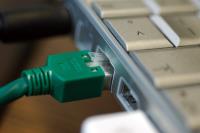 What can we learn from this? If you aren’t connected to a network or don’t have broadband,your computer constantly tries to find a nonexistent DCHP server each time you boot up or log on. That is why you feel that pause in the system. It is devoting many resources just to look for the server that is not even there!
To stop that, you can do one of two things:
- Assign an arbitrary, static IP address to it. Use an address reserved for local area networks like in the 192.168.*.* range. A good example is 192.168.0.13.
- Or, much easily, you can disable the network adapter.
- In Windows XP, click the Start Menu, click the “Control Panel”, Click “Network and Internet Connections”, Click “Network Connections”, Right click “Local Area Connection”, Click “Disable”.
- In Windows 95/98/ME, Right click “My Computer”, Click the second tab, Under Network Adapters right click the one you own (not Dial up adapter or AOL adapter), Click “Disable”.
 View Comments from Other Readers
 Subscribe by RSS Feed
 Bookmark this on Delicious
 Stumble it!
 Furl This!
 Reddit!
August 18th, 2008 at 2:56 am
disabling the network adapter will make it exceptionally challenging for people to continue reading your articles
June 19th, 2009 at 10:13 pm
Being a douche in websites trying to help doesn’t help anyone and you don’t look so smart fuq fios