
Connect Multiple, Simultaneous, Concurrent Remote Desktop Sessions
I hate sharing computers. Like most families, we started with just one that everybody used. It was a pain to compete with everybody in the house for computer time. Thankfully, now I have my own computer AND laptop. Unfortunately, the other members of my household are still kinda sharing the same family computer even though they own their own laptops. It’s like the family server, hosting everybody’s files, settings, programs, and profiles. Fortunately, there is a way to come across this family time-sharing dilemma. The only requirement is Windows XP Professional.
Remote Desktop Protocol (RDP)
Remote Desktop is an amazing feature that comes with XP Pro. However, its concept is not so groundbreaking with Linux and Unix users. They’ve always had remote terminal consoles and X Windows sessions. But with Windows neophytes, we’re drawn to this feature like bugs to a light source. The RDP (Remote Desktop Protocol) allows any user to access his or her computer remotely as if he or she was there. For example, pretend I’m in Tokyo on a business trip and I need to access some old emails in my Mozilla Thunderbird at home. Not a problem. Assuming that I enabled it before I left, I fire up the Remote Desktop Connection Manager. Then, I input my home’s static IP address and my Windows login. In the end, I see my home desktop screen in my business laptop screen on the other side of the world.
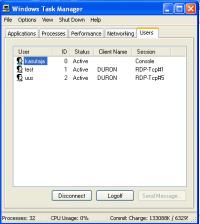 Multiple Logins
How does this apply to family time-sharing? Well, if everybody has their own username, they can access their account on the home server simultaneously on different computers! That means dad can be on the family computer. If mom needs to access her pictures, she just needs to use my laptop to remotely log on with RDP. If sister needs her playlist, she can use her computer to logon as well. Basically, the home computer RDP will be managing two different screens for mom and sister, while dad is working on the home computer itself! It’s like a home thin-client network!
Terminal Services Hack
There is just one problem. Unfortunately, the Microsoft Windows XP Professional RDP limits the number of users logged in to one. Two people cannot be logged on at the same time even if it includes just a physical, local-console login and a remote login. It has to be one or the other and only one at a time. It is so characteristic for Microsoft to do this! There was a time when Microsoft did allow more than 1 user logged on at the same time. I’m not sure if it was with Windows 2000, 2003, or XP Pro pre-SP2. But, it was only a matter of time before somebody hacked the protocol and opened up the disabled feature. Two great explanations on how it works and how to manually enable this feature can be found at Concurrent Remote Desktop Sessions in Windows XP SP2 in Sig9 and Ricky’s Web Review – Windows XP Multiuser Remote Desktop. Someone made it even easier by automating the process in a simple installation file that works just as well.
Caution
Multiple users logged on at the same time will tax computer’s resources heavily. This will result in slower performance! I only recommend doing this on a home server with at least 1GB of RAM and a fast processor (or a dual-core processor).
Update: I believe there is also a way to do this on Windows Visa. Read this article from missing remote.
 View Comments from Other Readers
 Subscribe by RSS Feed
 Bookmark this on Delicious
 Stumble it!
 Furl This!
 Reddit!
April 3rd, 2007 at 3:16 am
How is this any more practical than just mapping out each folder as a drive on target machine? I don’t see the practicality, you’re still getting to view what you need to, but you aren’t clogging the bandwith of the network.
May 30th, 2008 at 12:18 am
Tried but not working, need to find other solution. Also wasted 2 hours in trying this trick.
June 8th, 2008 at 3:37 pm
Hi i need ur help about the connect, i have 2 desktop in my room and my bro’s room. but 2 desktop can’t work at the same time. So how can i connect to let 2 desktop can have internet to online at same time?plz explain clearly for me how to connect, thxx
July 18th, 2008 at 12:07 pm
This article is complete garbage. Why on earth would you use multiple sessions with RDP when you could have the users access the files via a simple share?
July 21st, 2008 at 7:43 am
RDP is gives you faster performance with databases than accessing them as mapped drives over VPN. That’s what makes this different.
July 24th, 2008 at 2:27 pm
There’s also more resources on a computer than the disk drive. If you explain how to use a file share to have two users share the new, dual-core CPU, I’ll agree this is article is garbage.
July 29th, 2008 at 5:35 pm
I thank you for this advice. I preferred the “automating the process in a simple installation file” option.
To complete the process I had to set the server pc to allow remote sessions to connect and create an administrator user with password and (because I was on local LAN) make the same Workgroup name on both machines to see the Terminal Server pc from the remote pc. I was able to logon directly and via Remote Desktop Connection.
As to why:- thin clients are cheaper to buy and run power wise hence greener.
March 19th, 2009 at 5:48 pm
Patch worked like a charm. Thanks.
June 9th, 2009 at 1:59 am
If it works it will be great, accessing a shared folder is great but say you have three people want to run a specific programme that is only available on the host computer at the same time…from different locations…then this is great for that.
August 11th, 2010 at 11:06 am
Nice article about RDC. Also useful information about RDC can be found at
http://codingdigest.blogspot.com
January 18th, 2011 at 8:02 pm
[…] Connect Multiple, Simultaneous, Concurrent Remote Desktop Sessions. […]
January 29th, 2011 at 7:50 am
those who say this article is garbage probably don’t understand the uses of remote desktop. they’re the type of guys Microsoft has been using as cash cows—simpletons who just don’t know how to think beyond what is written on an appliance’s manual. i’m glad to have found this article.
January 29th, 2011 at 7:54 am
i actually use this to check on who’s using my home computer or to spy. home pc’s got a camera hidden somewhere and with concurrent, simultaneous user access, i can view/record things happening around my home pc.
October 14th, 2013 at 1:19 pm
You can hire an assistant, a phone answering service, writers,
researchers or whatever other type of expertise
you are seeking. What do you have to believe in order to show up, serve,
and prosper as an entrepreneur. How do you make sure that your card is one of the few that attracts attention, gets kept,
filed, and actually used when your prospect needs your product or service.
October 17th, 2013 at 9:06 am
Plus, there are a lot of internet sites that have web based house calculators free of cost.
When I first used this paste my sink looked new for the first time since it was installed.
If you really have terrible stains, or rust along
where the toilet is attached to the floor, I use Scour-off Heavy Duty Paste and a toothbrush.
March 11th, 2014 at 12:38 am
In certain areas, it is rather low under a 5%, whilst in
other places, nearly one in three children suffers from one or more warts.
Banana: Banana peel is additionally effective when
confronted with warts. You might want to do this, no matter where
your warts or located, but you may want to be a small
bit more interested in the warts which might be on your hand, because you will
likely shake hands with others. Genital warts could possibly be raised or flat,
they could be small or large, appear as a single wart
or in a patch of varied warts, they even have a center that resembles an item of cauliflower.
Genital warts are caused with the spread in the human papillomavirus, that’s abbreviated to HPV.
April 20th, 2014 at 3:13 pm
Even spinning three times roughly can do it for some people.
Another day 1 simple work out was side stretches
which in fact had me stretching each leg out far
out away from the other, while leaning my entire body into it.
Drink when you want to eat (for your first two weeks it’s going to be
really hard). My Resveratrol Experience: Miracle Supplement for Fighting Cancer.
It’s been every week since I took around the Wii Fit challenge and my abs ‘re feeling the workout.
April 24th, 2014 at 4:24 am
These are smooth surface buttons that allow you to operate your Blendtec blender without a mess.
Form two loaves, cover them, and let them rise until doubled and puffy.
You may be asking yourself why your juice extractor that
you received as a wedding present or one that you bought at Wally World for less than twenty-five dollars
would not work just as well.
April 27th, 2014 at 2:10 pm
Let’s examine more bobcat facts related to their behavior during reproduction and mating,
when they travel, and how they hunt for food. “When your body gets the same amount of calories every day, you increase your body’s efficiency at burning calories and decrease calorie burn,” said Dr.
Vegetarian garbage food includes hot chips and broiled foods, bundle crisps and chips, without dairy chocolates, sugar-laden “health-bars” and treats, and so on.
The paleo diet can quite simply be defined as a very wholesome diet which only
allows the consumption of natural foods such
as meat, vegetables and healthy fats such as coconut oils,
macadamia oils, olive oils, etc.